How to create Rules
Last updated: March 6, 2026
Rules are English-language rules that are applied automatically to time entries to enforce compliance with OCGs and firm-wide standards.
Purpose
Rules are chiefly used to ensure compliance with client billing guidelines and OCGs. Many clients have highly specific narrative requirements, and non-compliant entries are often rejected, creating administrative burden, billing delays, and unnecessary rework. Rules help reduce rejections by ensuring entries meet those standards before they are sent to billing, while also promoting consistency across firms.
When active, Rules generate suggestions on time entries. You can review each suggestion and choose to:
accept the suggested revision and ensure compliance
reject the suggestion
manually edit the entry
Even if you reject a suggestion, you may still release the entry. Rules are advisory –they surface compliance guidance but do not prevent releasing.
Who Can Create and Manage Rules
At this time, only Firm Admins can create, edit, activate, or apply Rules.
If you would like a new Rule created, you must coordinate with your firm administrator.
Scope and Application
Rules can be applied at three different scopes:
Firm-wide (default)
Client level
Matter level
All timekeepers are subject to any Rule that applies to the scope they are working within.
If a Rule is created at the firm-wide level, it applies to everyone in the firm. If created at the client or matter level, the administrator must specify which client or matter the Rule applies to during setup.
Any change to a Rule affects all users within that Rule's scope.
Step-by Step Guide for Admin: Creating a Rule
1. Add a New Rule
To create a Rule:
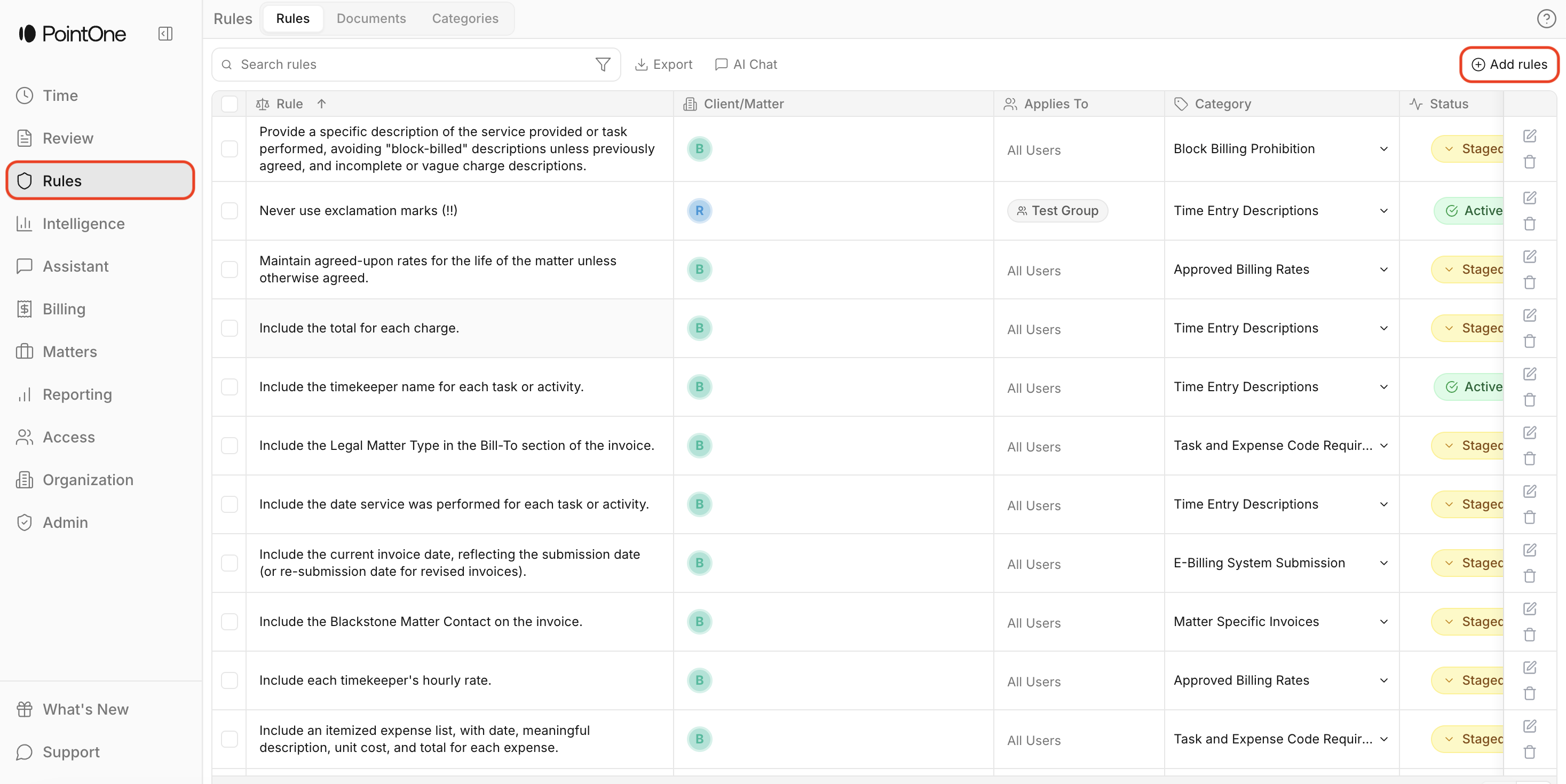
Select the Add Rules button in the top-right corner of the PointOne application
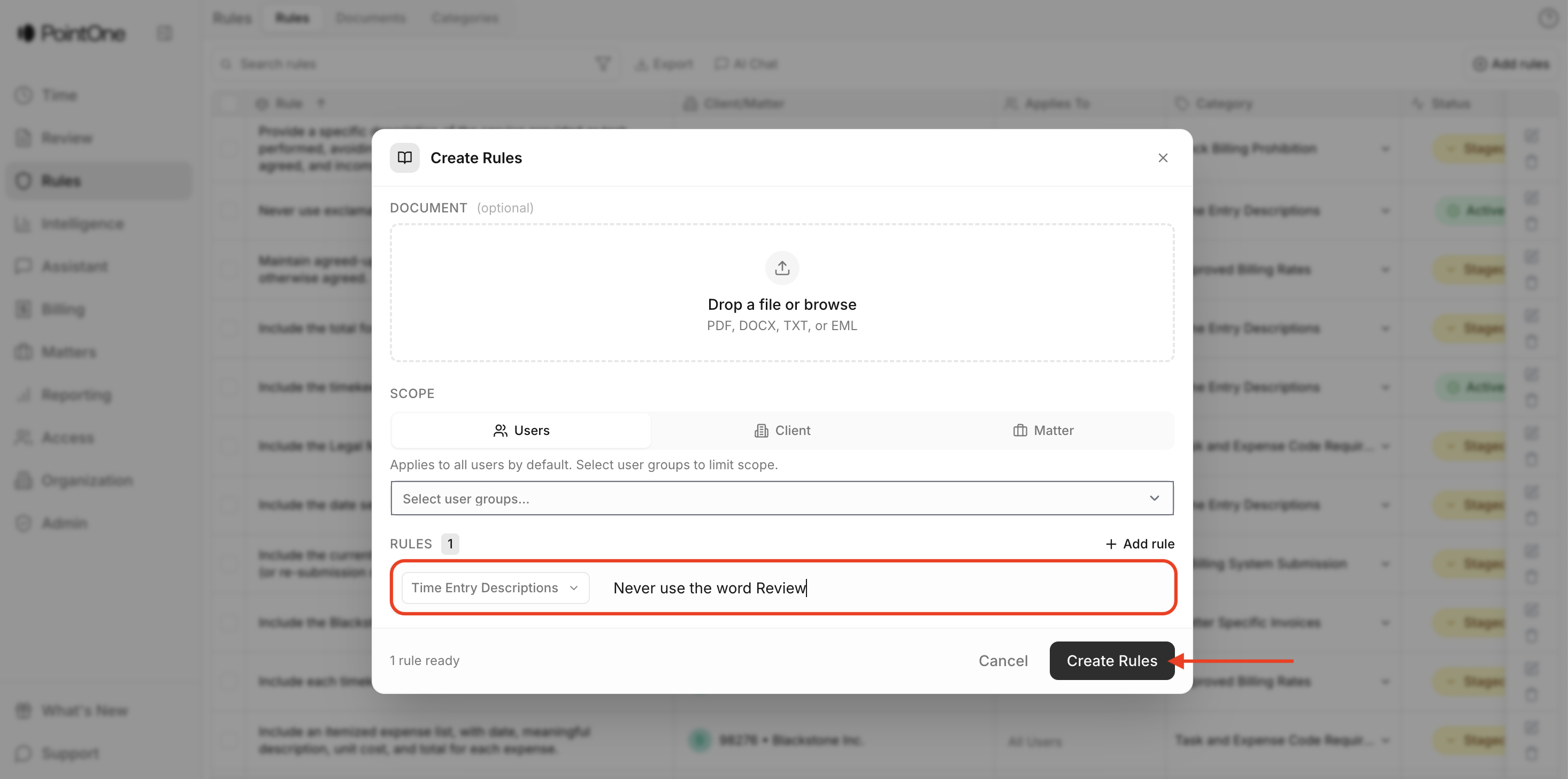
Draft the Rule in plain English in the text box
1a. Best Practice: How to Write an Effective Rule
Select the appropriate scope
Click Create Rules
After creation, the Rule will automatically be set to Staged
2. Activate the Rule
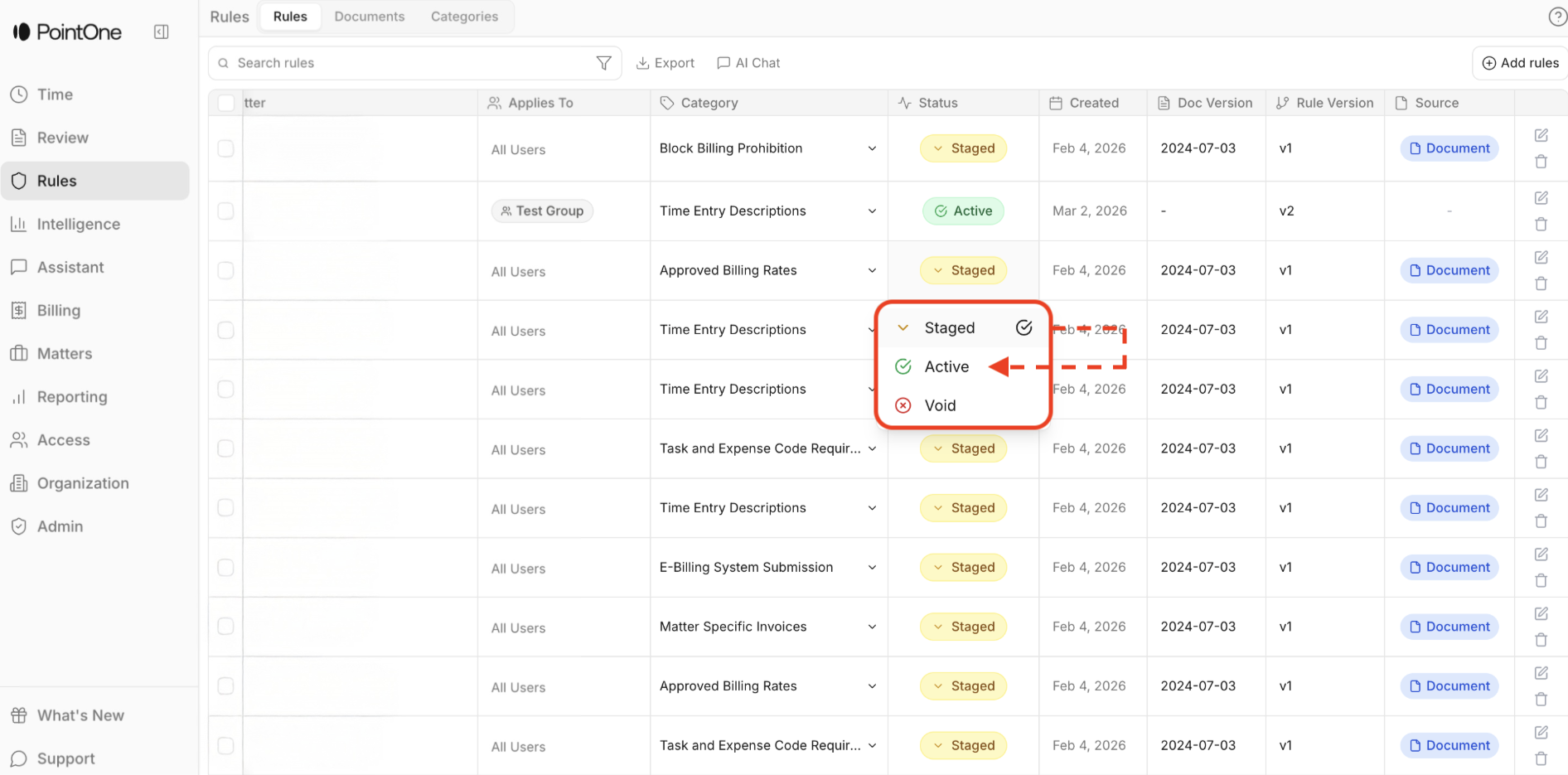
A Rule in Staged status is saved but not applied.
To apply the Rule, an administrator must click on the Rule's status and change the status to Active. The rule will then begin generating suggestions on applicable time entires.
2a. Best Practice: PointOne recommends starting with just a few Rules, as many drafting standards are already learned implicitly through released entries. Begin by creating and staging any Rules you are considering. Then activate a small number of clear, simple Rules and monitor how suggestions appear on time entries. Confirm that the behavior aligns with your expectations before activating additional Rules. This phased approach helps ensure the Rules function as intended without creating unnecessary noise or conflicting suggestions.