Welcome to PointOne
Last updated: April 30, 2026
What is PointOne?
PointOne is the easiest way to capture your time. PointOne tracks work you do across a variety of applications — including your inbox, calendar, document drafting tools, and video calls — and automatically generates time entries throughout the day.
The goal is to help you capture more time while making time entry easier.
This guide highlights the core features of PointOne and how they fit into your daily workflow.
How to Login
Once you have the application downloaded, open the PointOne app and select Log in with SSO. Then, proceed to log in with your typical organization credentials.
How to Create Time
PointOne has several modes for creating time entries, from manual to fully automated. This means there are many ways to use PointOne to align with and enhance your existing workflow.
New timekeepers are encouraged to begin with modes like Manual, Voice, and Hourly Schedule to build familiarity and confidence, then gradually transition into the more automated features as they become comfortable with PointOne.
Manual
Manual time entry works like traditional timekeeping tools, but faster and more flexible. Every field can be edited instantly, and entries automatically save as you work.
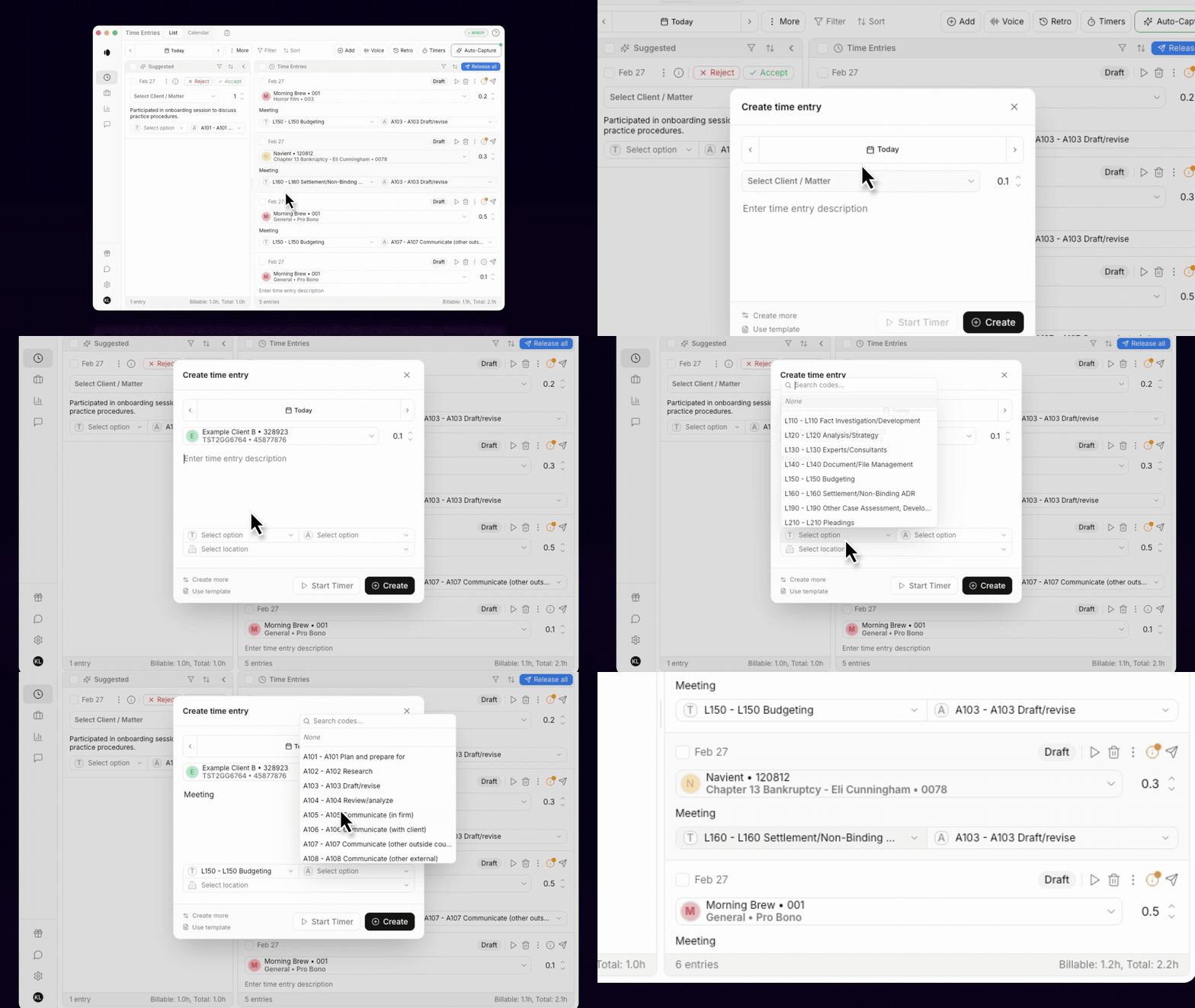
To create a Manual entry, simply click the Add button in the task bar. Then, select a Client/Matter from the dropdown menu, type a narrative description, and add requisite task and activity codes. Finally, click Create to add the new entry to Time Entries.
Voice
Voice mode allows timekeepers to dictate time entries naturally, similar to working with a billing assistant. Voice is useful when leaving meetings, commuting between locations or summarizing outcomes in plain language. PointOne automatically transcribes natural language speech, using that transcription to create a full narrative time entry.
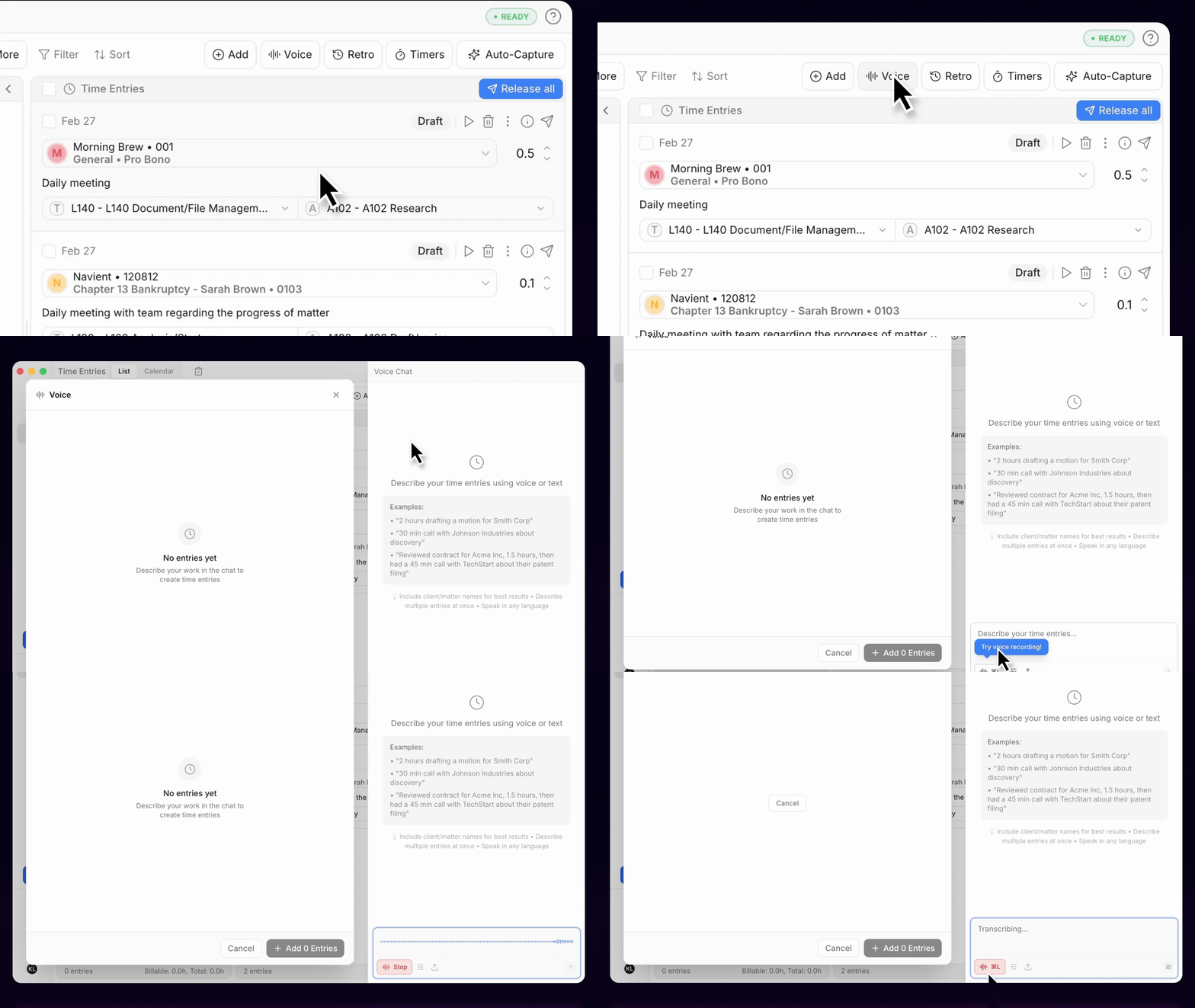
To create a Voice entry, click the Voice button in the task bar. Click the Recording button before speaking directly into the microphone. When the recording stops, PointOne will transcribe the timekeepers' speech and suggest a complete time entry.
AI-assisted Timers
For those that are accustomed to timers, PointOne offers AI-assisted timers that combine the control of a traditional timer with automated narrative drafting.
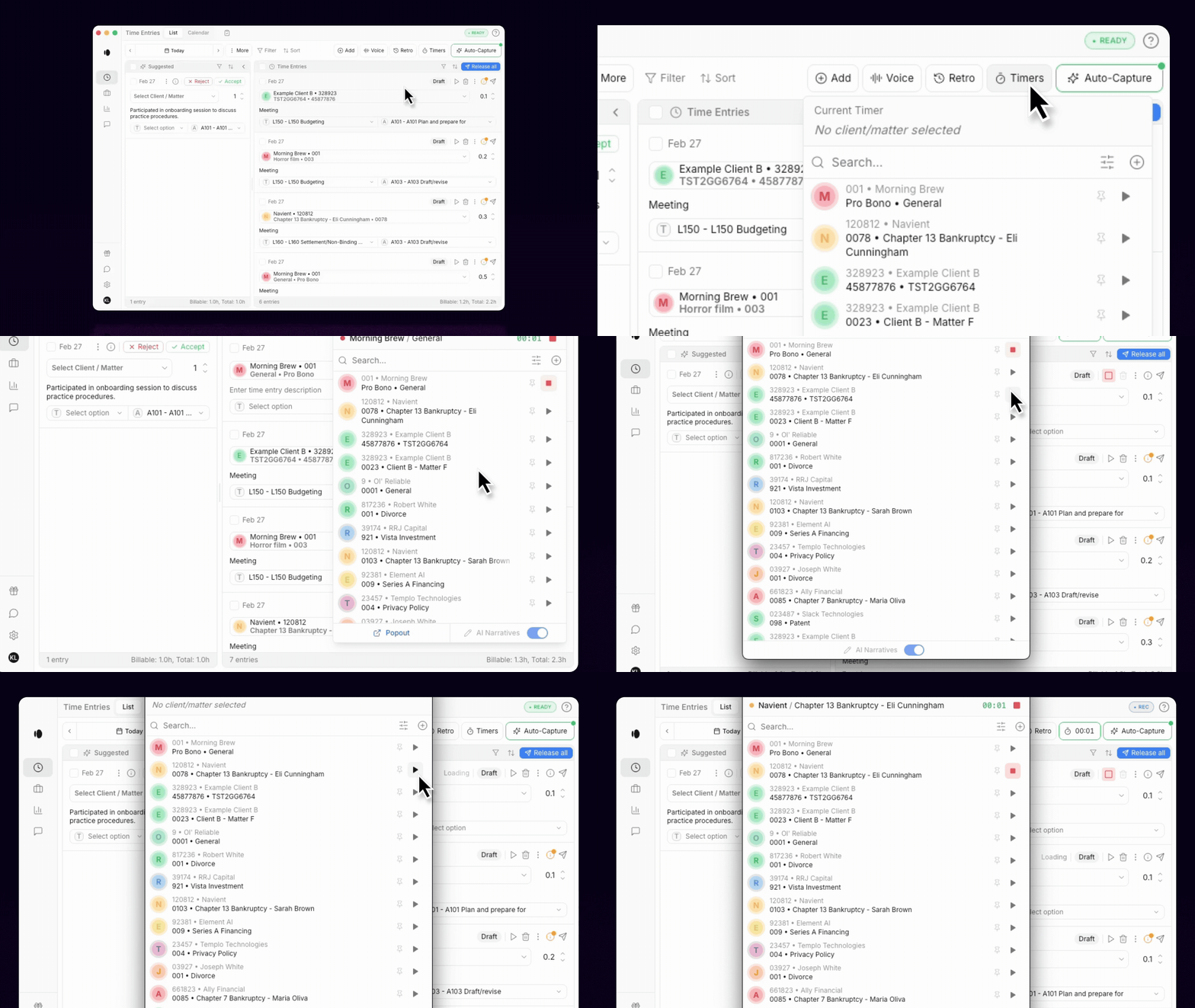
To begin a timer, simply choose Timers in the taskbar to reveal a dropdown menu with Client/Matters. Click the Play button to begin recording. When the timer is stopped, PointOne will suggest a narrative description based on your activity during that session.
Auto-Capture - Hourly Schedule
PointOne integrates directly with your email, calendar, and Zoom/Teams to periodically generate suggested time entries that users can Review and Accept. Once enabled, Hourly Schedule runs passively in the background throughout the day.
To enable Hourly Schedule, navigate to Auto-capture > Hourly Schedule and turn the toggle to the right position. Then, use the Options menu to widen or narrow the set of activities that are automatically transformed into time entries, applying custom Filters to exclude certain types of emails or events.
Auto-capture - Retro
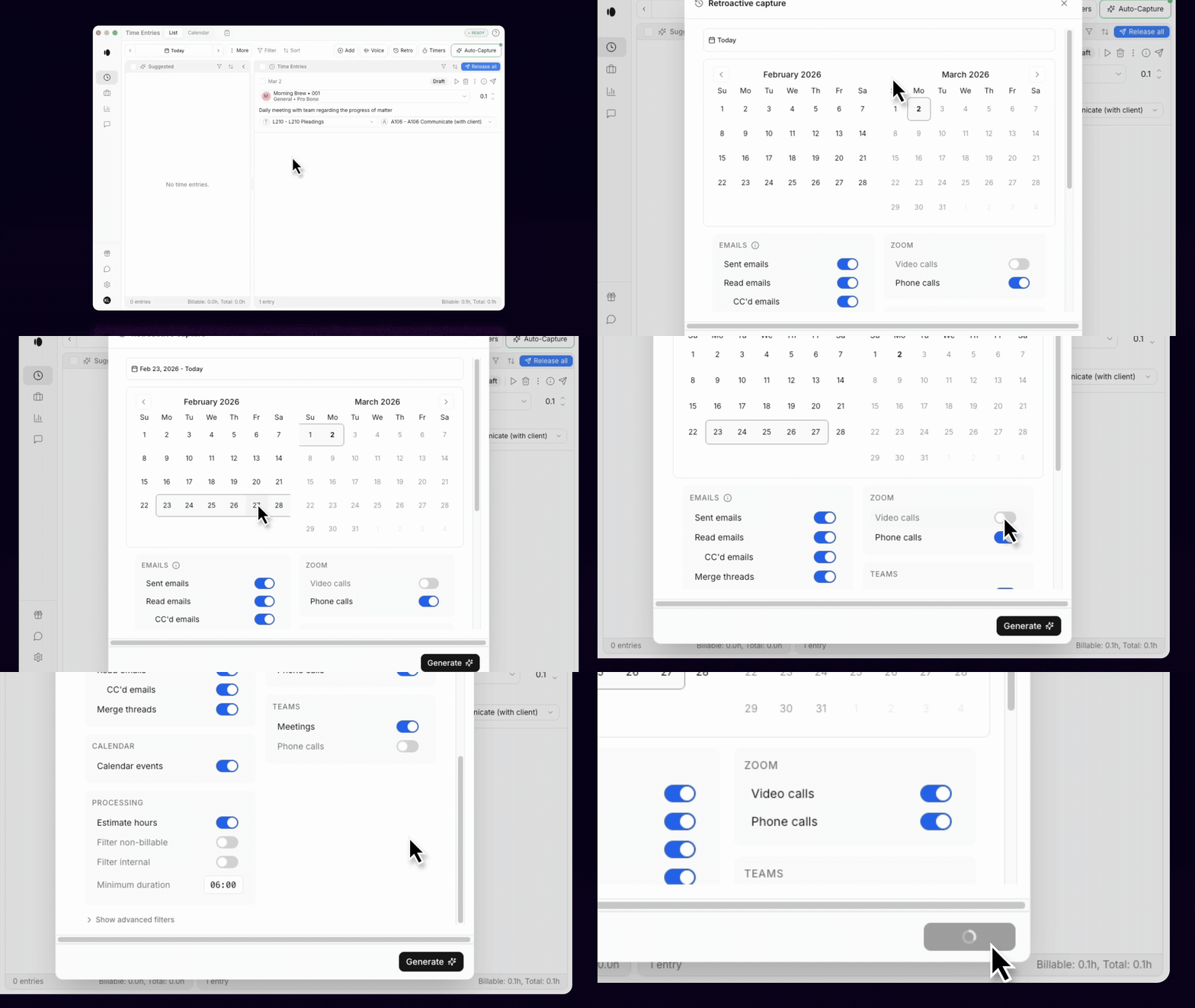
Retro utilizes the same integrations as Hourly Schedule to go back in time and recreate time entries for past days based on your email, calendar, and Zoom/Teams activity.
To run Retro for a past day, simply click the Retro button in the taskbar and select the desired date range. Then, click Generate. To view those time entries, navigate to the past date using the Date button in the top-left corner.
Auto-capture - Computer Capture
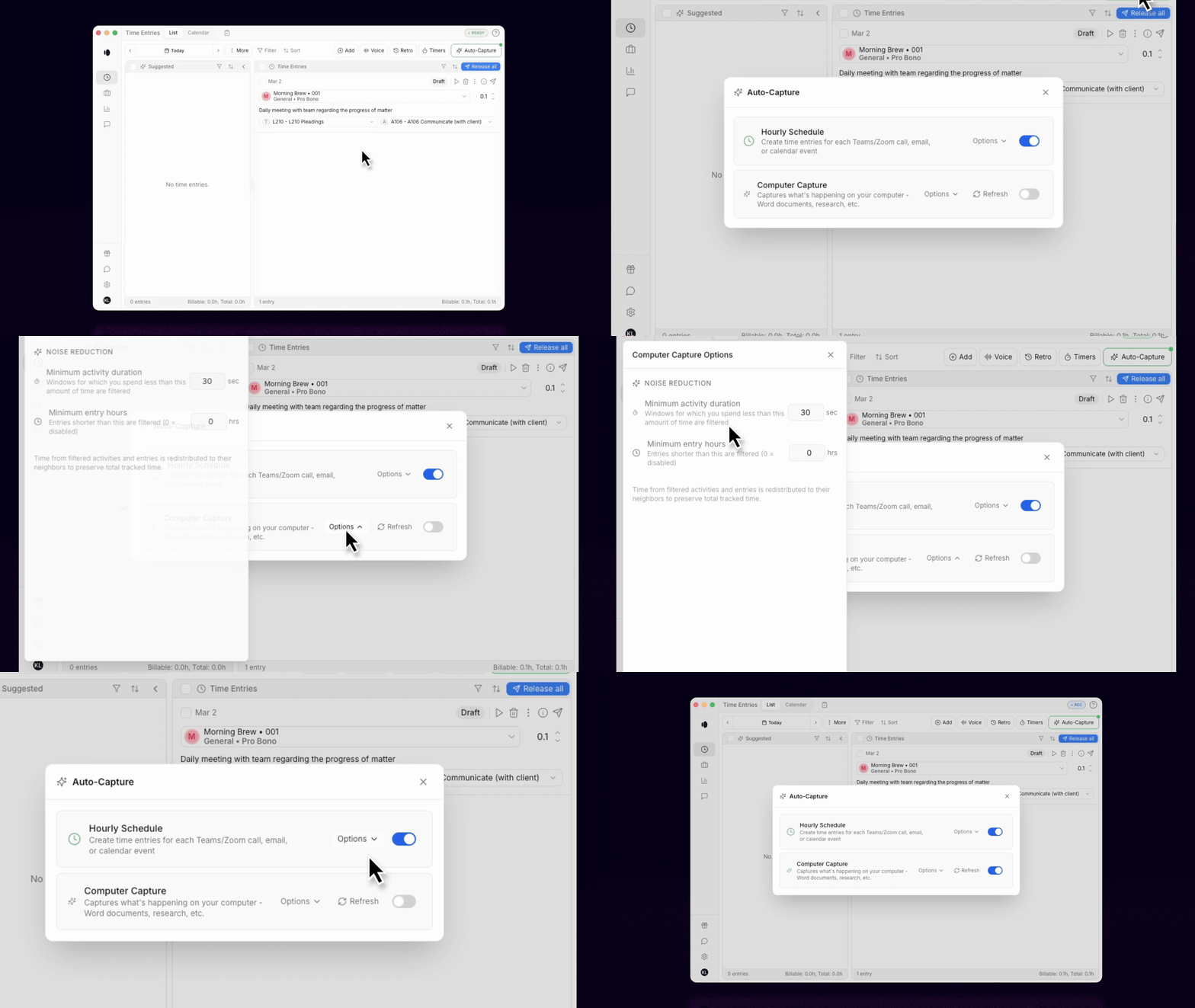
PointOne's Computer Capture works like a smart activity recorder that translates on-screen work into time entries. Once enabled, Computer Capture captures time spent drafting documents, conducting legal research in the browser, managing internal documents, and more.
To enable Computer Capture, navigate to Auto-capture > Computer Capture and turn the toggle to the right position.
How to Edit Time
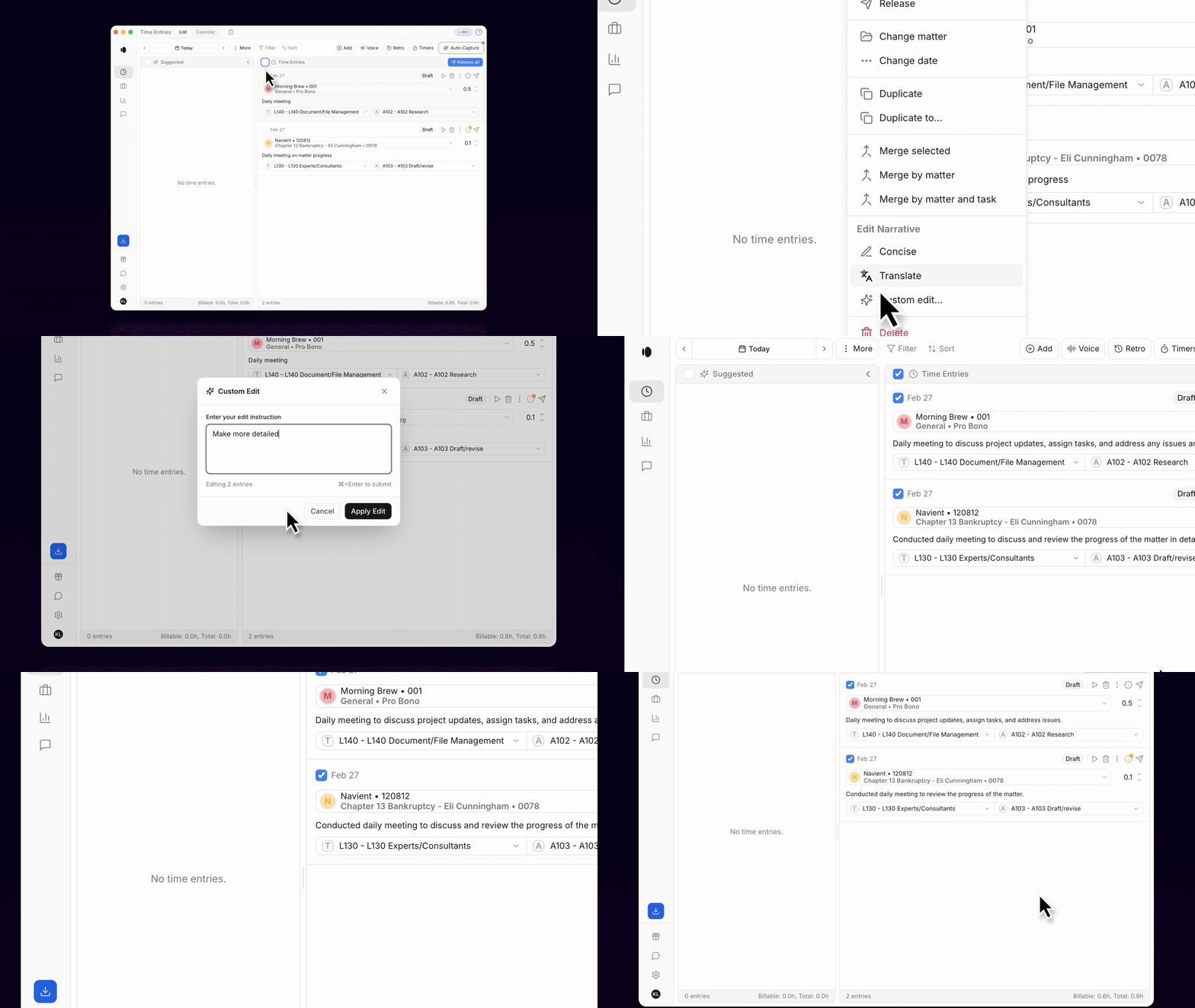
PointOne is designed to make editing a breeze. All fields can be edited directly — there's no need to click in and out of the individual time entries.
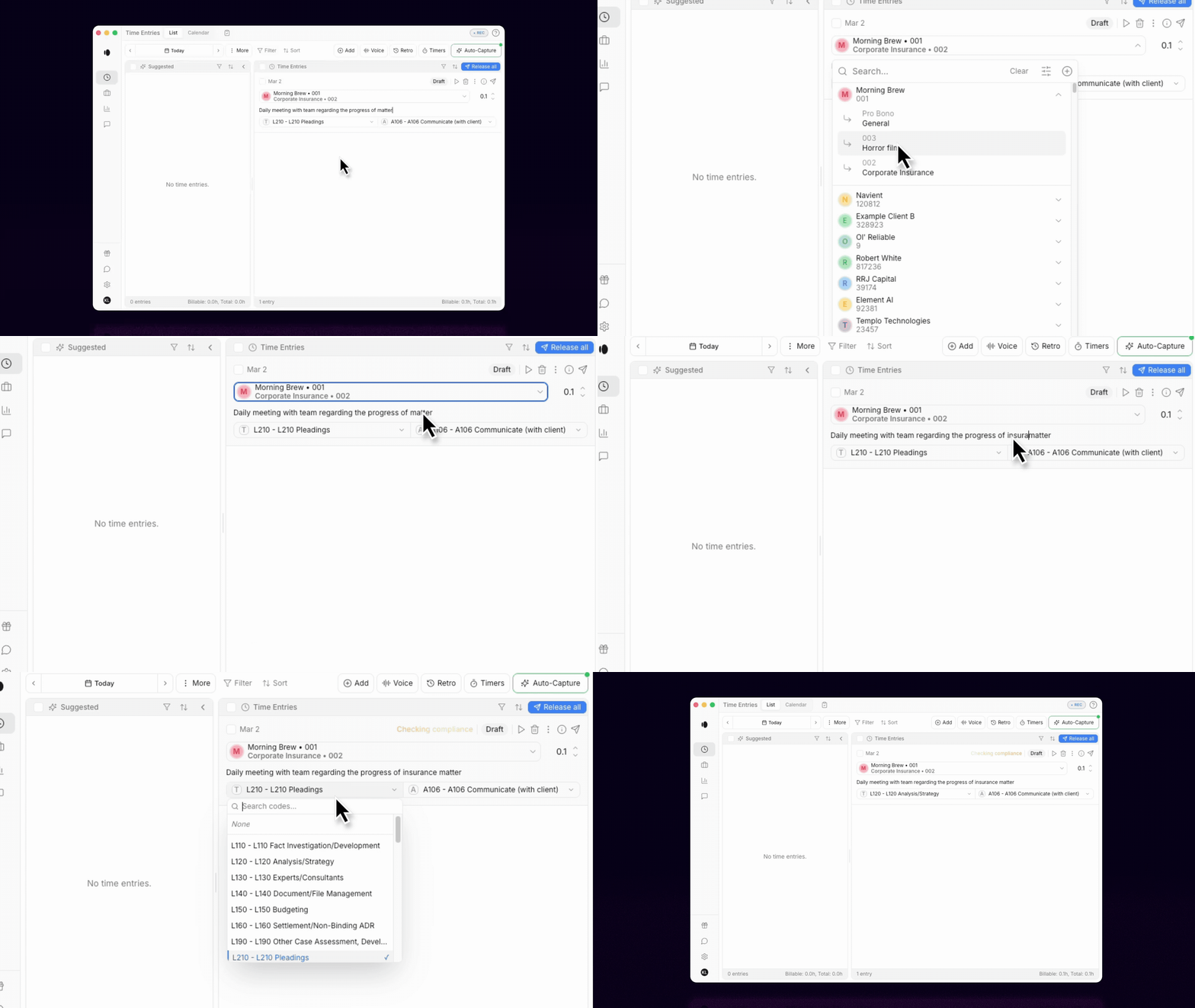
Time entries can also be edited en masse. Using the More button in the taskbar, timekeepers can Merge by Matter or apply a Custom Edit to several time entries at once.
How to Release Time
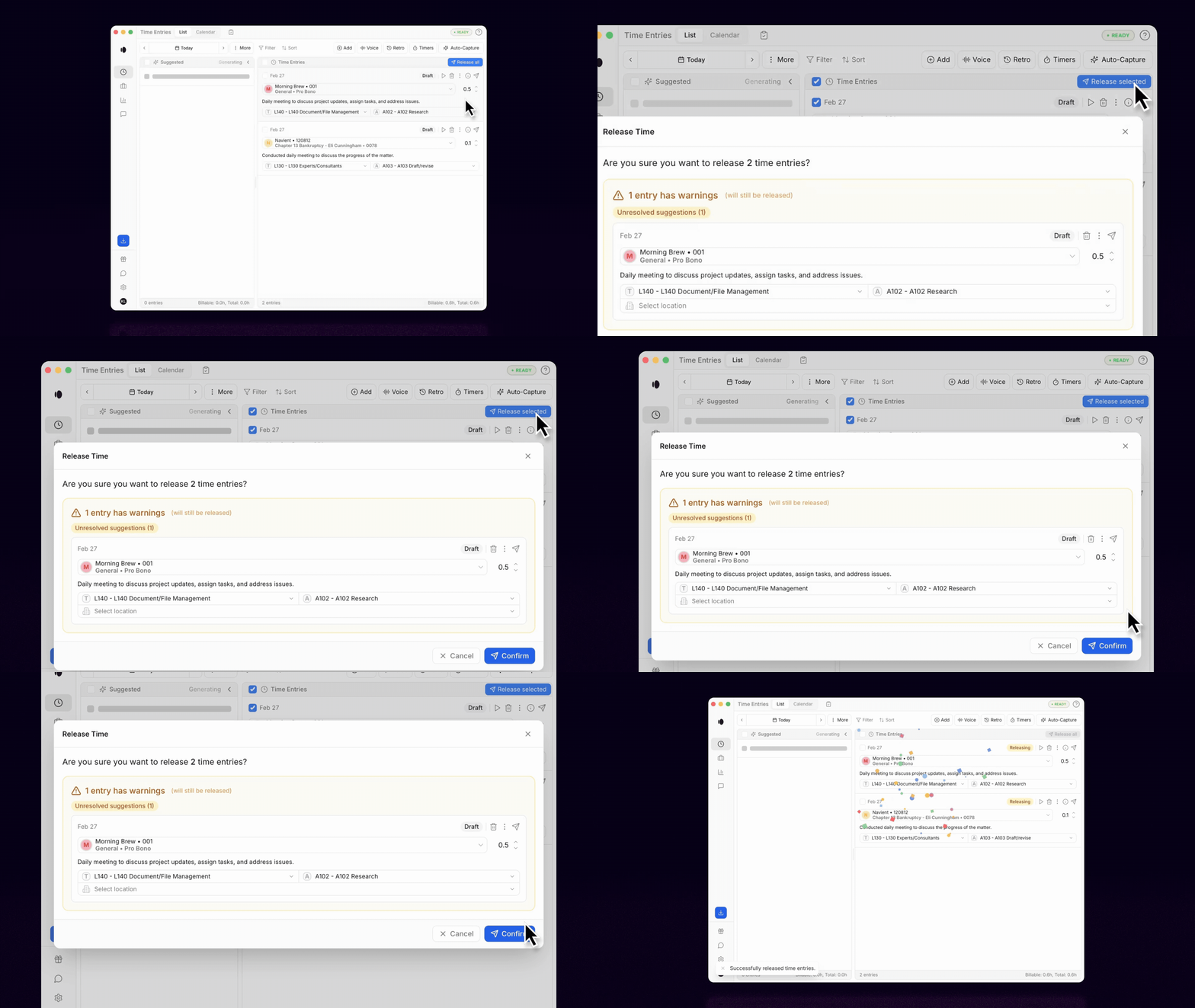
Releasing time is the most important step in the PointOne workflow. Releasing time entries is not only how timekeepers will send their time to billing, but also how they will teach PointOne. PointOne learns over time—each released time entry becomes a new example it uses to automatically generate entries that match your style.
In just a couple of weeks, timekeepers can expect to see time entries that both encompass their full scope of work and reflect their personal narrative style.
Best Practices
Release Time Daily: Releasing time entries daily, especially at the beginning, is associated with faster learning. The system improves with use — the more entries released, the more effective P1 becomes.
Utilize Filters: Filter out unwanted time entries with Filters, automatically excluding certain email and event types.
Support Resources
PointOne includes various forms of built-in support to help users get assistance effectively. Users can:
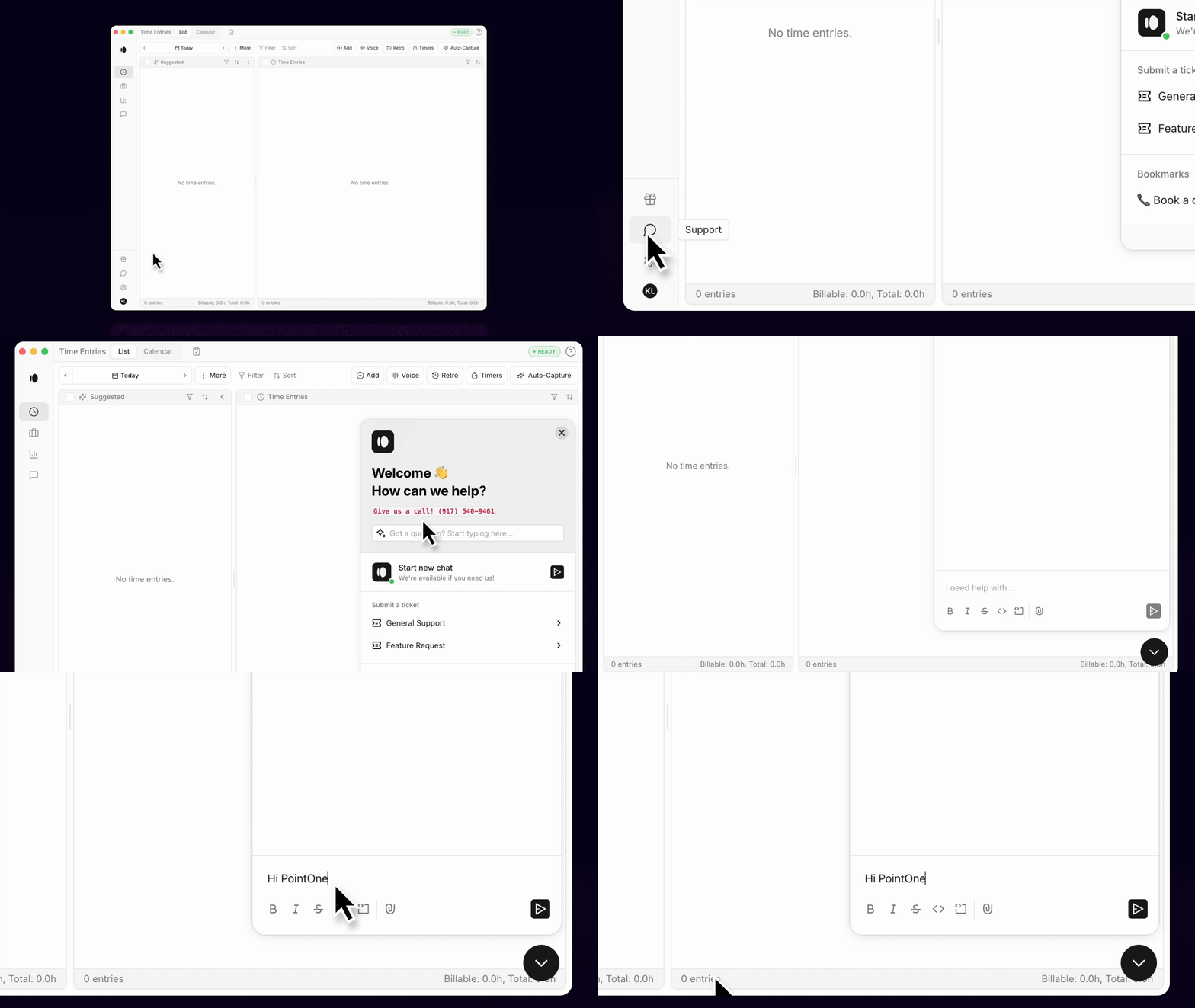
Contact support directly from the In-app Chat
Utilize the Knowledge Base
Meet 1:1 with a member of the PointOne team