How to release time entries
Last updated: March 6, 2026
Why Releasing Time is Important
Releasing time is the most important step in the PointOne workflow. Releasing is how:
1. Time is sent to billing
2. PointOne learns
Each released time entry becomes a training example for PointOne. Over time, the system uses those examples to generate entries that reflect your narrative structure, drafting style, and scope of work. Consistently releasing your time leads to better, more accurate entries within a few weeks.
1. Review Entries Before Releasing
Before releasing, confirm that your entries are finalized
1a. If Your Firm Has Rules Enabled
Rules are firm-level standards that apply automatically to time entires. If your firm uses Rules, you may see suggestions on your entries before releasing. These suggestions should be accepted or rejected before you release.
Before releasing:
Accept suggested changes if appropriate
Reject suggestions if they do not apply
Manually edit the entry if needed
If you modify the entry text yourself, the Rules will re-check the updated version. Ensure all suggestions are resolved before releasing
2. Release Your Time
Once the entry is finalized,
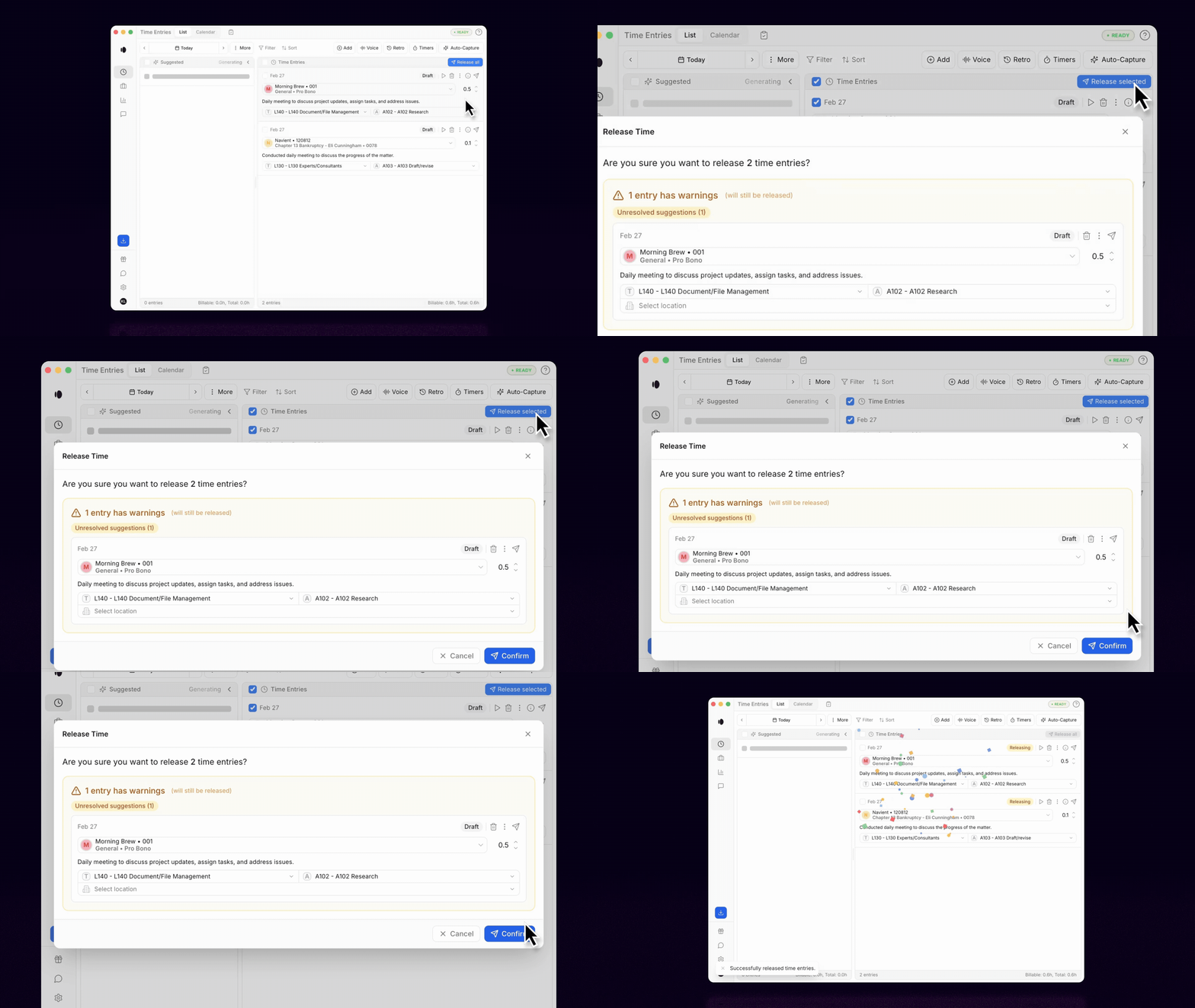
Click the blue Release all button at the top right of your PointOne 'Time' screen.
Click Confirm
Your time is now sent to billing, and used as a learning example for PointOne
2a. Best Practices
Release Time Daily: Releasing time entries daily, especially at the beginning, is associated with faster learning. The system improves with use — the more entries released, the more effective PointOne becomes.
Utilize Filters: Filter out unwanted time entries with Filters, automatically excluding certain email and event types.
Appendix: How to Confirm an Entry Has Been Released
A released entry will appear:
Greyed out
No longer editable
Marked as released in the status bubble
For additional guidance, see How to Release Time in Welcome to PointOne.