How to Use Access Walls
Last updated: April 30, 2026
Overview
Access walls allow administrators to restrict which clients and matters are visible to users in PointOne. When a client or matter is added to the access wall, it is hidden from users and no time can be entered or released against it. This is useful for matters that are closed, administrative, sensitive, or should otherwise be off-limits for time entry.
Configuring Access Walls
Note: Access walls are configured via the PointOne web application at app.pointone.com. This feature is not available in the desktop application.
Open the PointOne web application at app.pointone.com
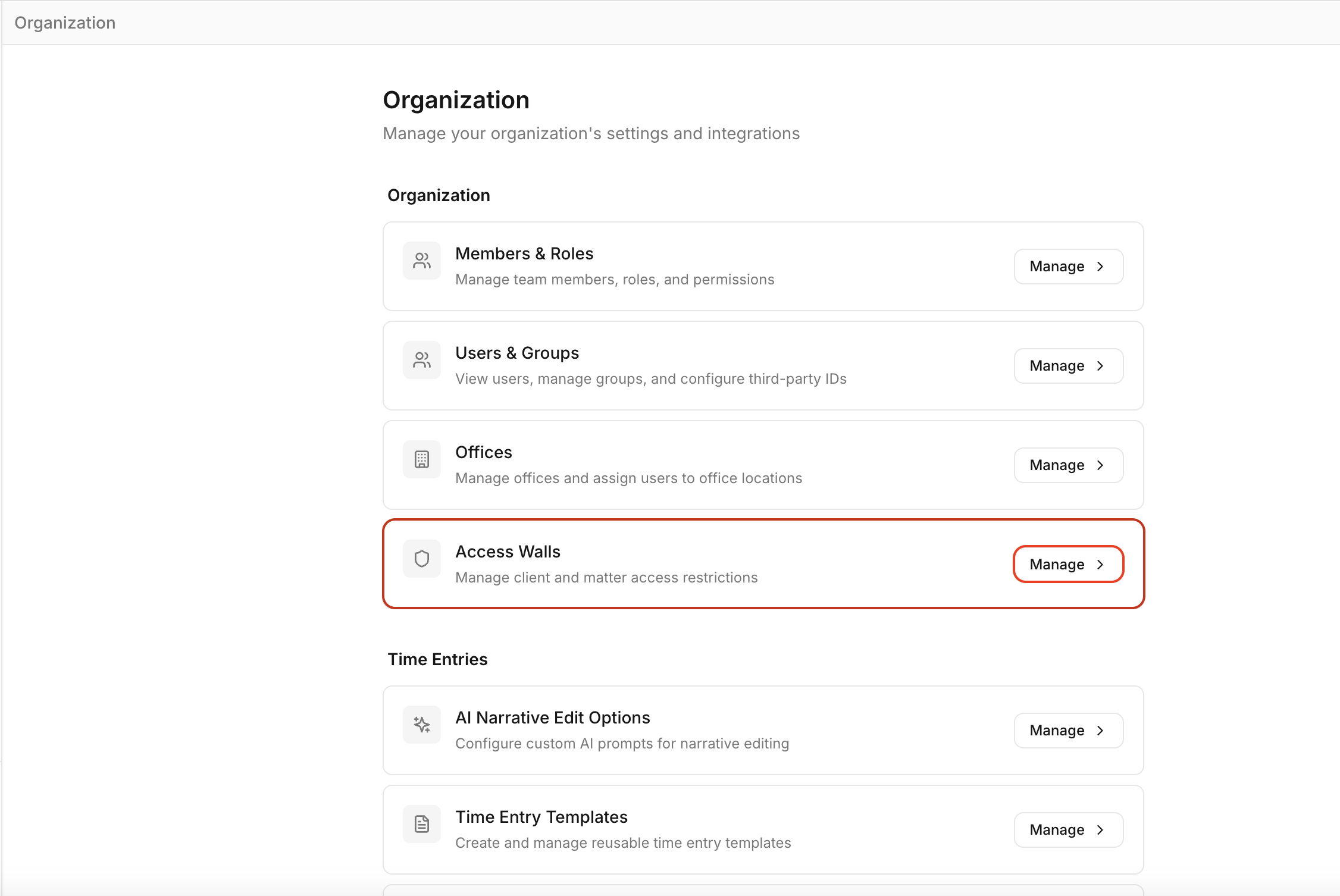
Navigate to the Organization menu
Select Access Walls
Search for the client or matter you want to restrict
Select it from the research results to add it to the list
Once added, deselect Enable Firmwide to activate the restriction
Once configured, the restricted clients and/or matters will be hidden from users across the firm, preventing any time from being entered or released against them.
Removing Access Walls
To restore visibility for a previously restricted client or matter, navigate to Organization > Access Walls, locate the entry in the list, and remove it. The client or matter will become visible to users again immediately.