Rate schedules
Last updated: April 23, 2026
Rate schedules are firm-level billing configurations that define hourly rates (and related billing rules) for timekeepers. Each firm can have multiple schedules, but only one default schedule. Rate schedules can include a firm-wide default rate, per-user overrides, and per-group overrides, a minimum billable time increment and a "billable vs non-billable by default" flag.
These settings ensure consistent and structured billing across the firm.
Creating a Default Rate Schedule
Open the PointOne web application
Navigate to the Organization page
Scroll down to Billing and open Rate Schedules
Select Manage and click on the New Schedule button
Fill in the fields for the modal title Create Rate Schedule
The new schedule will now appear in the list; if marked as default, it will be the firm‑wide fallback
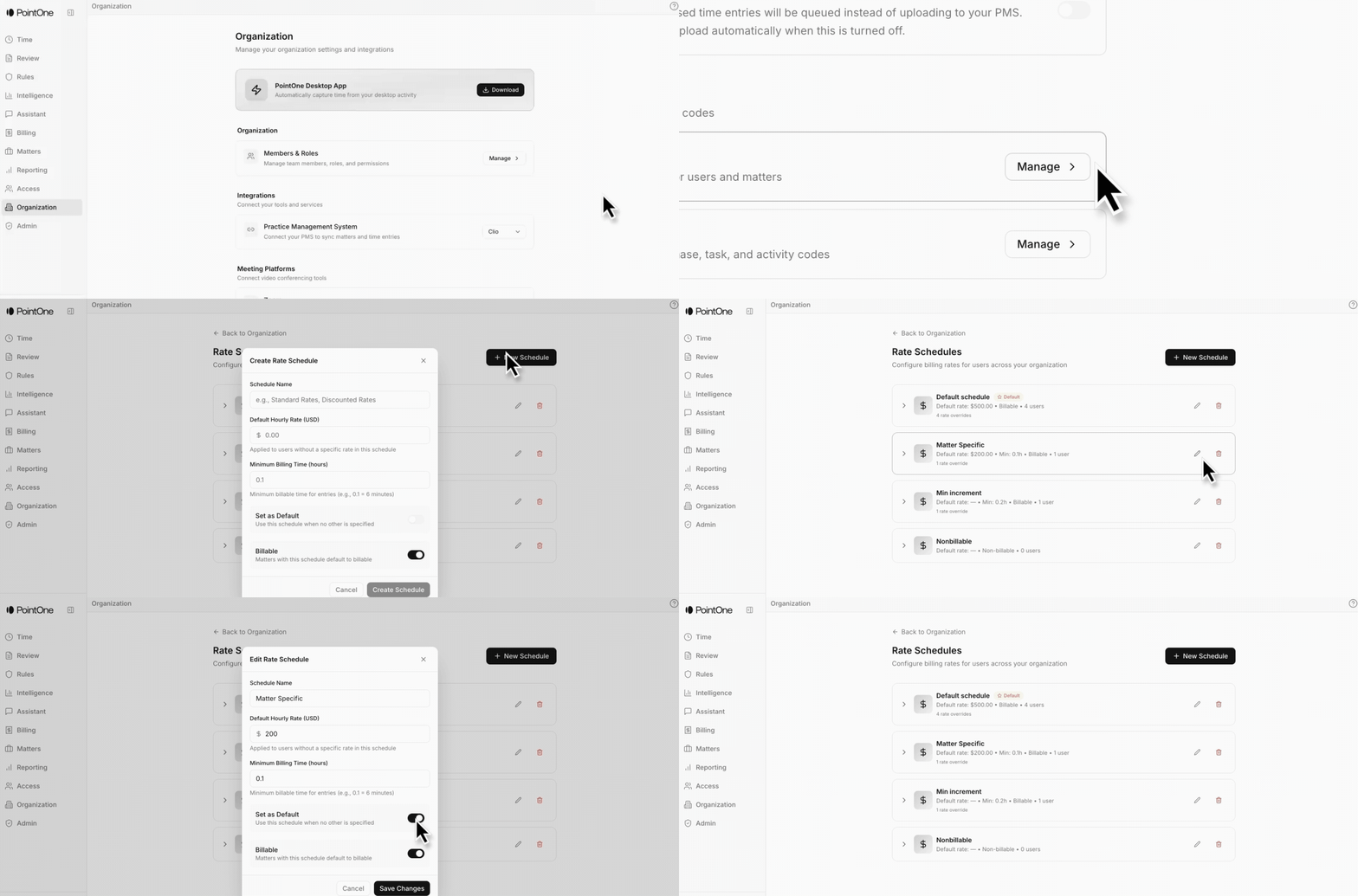
Managing and viewing schedules
Once you select Organization > Billing > Rate Schedule, existing rate schedules will appear as a card.
You can click the card to expand it, use the Edit pencil icon to change information, and use the Delete icon to delete the schedule.
Adding Fee Earners Rates
Click anywhere on the card header. You will see the option to Add Group or Add User. Select a user/group not already in that schedule and that user's/group's hourly rate. Click Add Group.
In the expanded card:
For a group, click the small X on the right of that group row to remove its override.
For a user, click the X on that user row to remove their override.
Localized Rates
In addition to the Default Rate Schedule, you can create additional Rate Schedules that are only allocated to certain matters/clients.
1. Use the client level when you want all (or most) matters for a client to follow the same rate schedule.
Open the matter that belongs to a client
Click on the three dots to the right of the client and select Edit client
Fill in the fields in the Edit Client modal and select Save
After saving, all matters under this client will use the selected rate schedule unless a specific matter has its own override.
2. Use the matter level when a specific matter needs a different rate schedule than the rest of the client's matters.
Open the specific matter
Click on the three dots to the right of the matter and select Edit matter
Locate the Rate Schedule dropdown and select the schedule you want applied to that matter
Click Save
Flat Fee Rate Schedule
Create one additional Rate Schedule titled Flat Fee
Set all rate values in this schedule to $0.
This ensures that time entries for flat fee matters reflect $0 hourly values, and that flat fee matters flow through the billing pipeline without generating unintended hourly billing amounts